What Is the Soap Opera Effect, and How Do You Turn It Off?
The soap opera effect makes films look like cheap video. Why TV motion smoothing causes it, and how to switch it off or use Filmmaker Mode on your set.
- Bin
- Movies
- Box code
MVS 09- Added
- Read time
- 4 min read
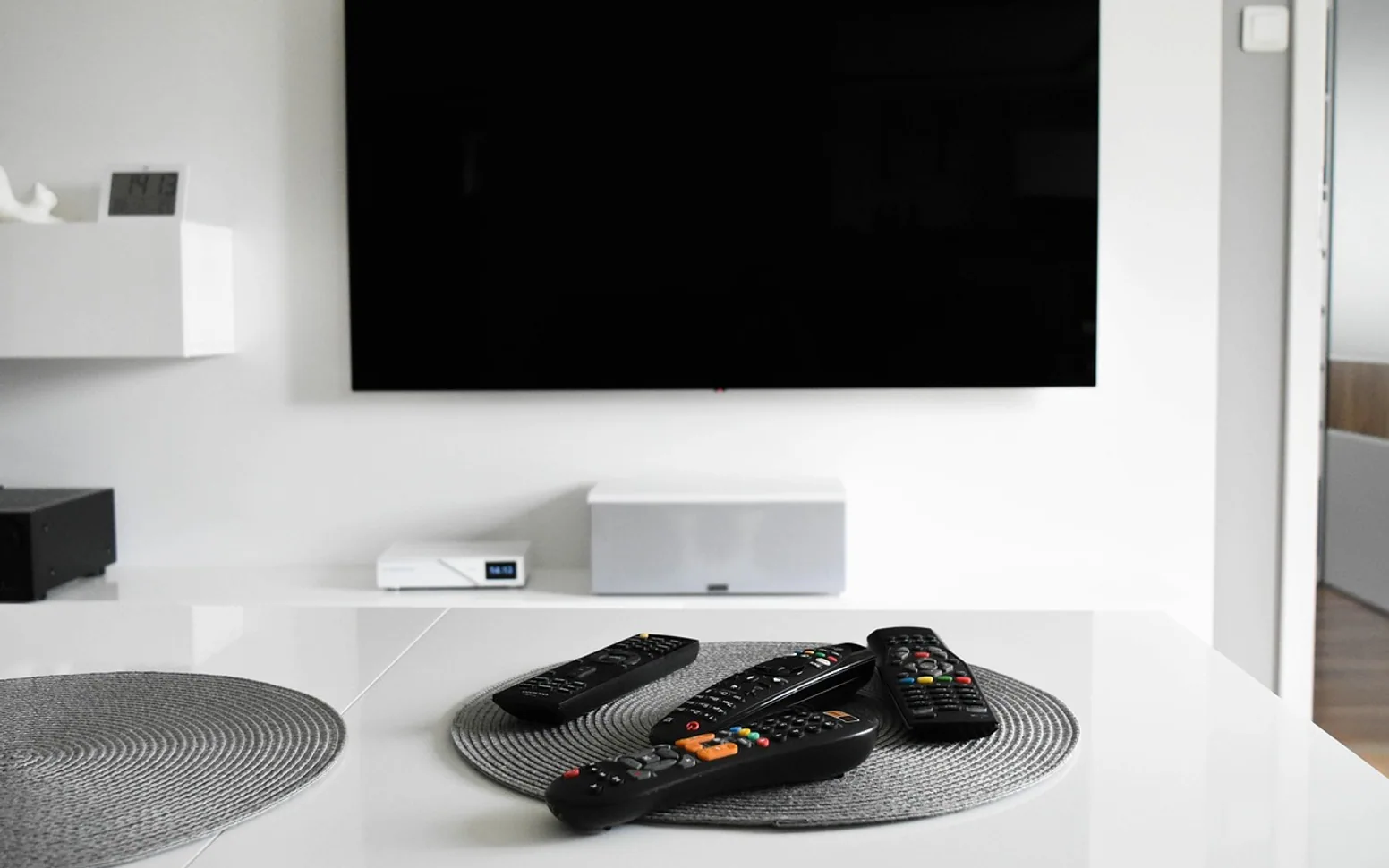
The soap opera effect is the overly smooth, video-like motion a film takes on when your TV's motion smoothing is switched on. The set invents extra frames between the real ones, so a film shot at 24 frames per second moves like live television. To get rid of it, turn off the motion setting in your picture menu (often called motion smoothing or motion interpolation), or switch to Filmmaker Mode or a Movie or Cinema picture preset.
If you have ever watched a big-budget film at someone's house and thought it looked oddly cheap, as if it were shot on a camcorder on a cardboard set, this is almost certainly what you were seeing.
Why it happens
Most feature films are shot and shown at 24 frames per second. That rate, standard since the early sound era, gives movement a slight blur and cadence that audiences have come to read as "film". Many modern televisions refresh their screens 60 or 120 times per second, and manufacturers add processing to bridge the gap.
Motion smoothing, also called motion interpolation or frame interpolation, looks at two neighbouring frames and generates new ones in between. Fast movement becomes smoother and less blurred, which suits some content. On films, though, the extra smoothness resembles video, the format long used for daytime soaps, news and live studio shows. Hence the name.
How to recognise it
- Actors seem to glide rather than walk.
- Camera pans look unnaturally slick, almost like a video game.
- Sets and make-up look more obviously like sets and make-up.
- Fast-moving objects sometimes carry a faint shimmer or halo where the TV guessed wrong.
How to turn off motion smoothing
Every brand hides the setting in a slightly different place, under a different name, and the names change between model years. The general route looks like this:
- Open Settings and go to Picture.
- Look for Expert settings, Advanced settings or Picture clarity.
- Find the motion option and set it to Off, or pick a custom mode and set the smoothing (sometimes labelled de-judder) to zero.
- Repeat for each input if your TV stores picture settings per HDMI port or per app.
| Brand | What the setting is often called |
|---|---|
| Samsung | Auto Motion Plus, or Picture Clarity on newer models |
| LG | TruMotion |
| Sony | Motionflow |
| Other brands | Look for words such as Motion, Smooth, Clear, Clarity or Judder in the picture menu |
If the manual has gone missing, the model number printed on the back of the set is the quickest way to find the right one.
The shortcut: Filmmaker Mode and movie presets
Filmmaker Mode is a picture preset backed by a group of film studios, filmmakers and TV makers. In one step it switches off motion smoothing, extra sharpening and noise reduction, and keeps the film's original frame rate, aspect ratio and colours. On some sets it turns on automatically when the content signals it. If your TV does not offer it, a picture mode labelled Movie or Cinema is usually the next-best starting point, although some still leave a little smoothing on, so check the motion setting anyway.
Other settings that work against the film look
- Vivid or Dynamic mode: bright and punchy for a shop floor, harsh in a living room.
- Sharpness: high values add halos around edges. A low setting, or zero on many sets, usually looks cleaner.
- Noise reduction: can smear natural film grain into a waxy texture.
- Colour temperature: a "Warm" setting is often closer to what filmmakers see while grading than the default "Cool" or "Standard".
- Streaming box settings: some boxes and sticks offer a "match frame rate" or "match content" option, so the TV receives films at their native rate.
Should you ever leave it on?
It is your living room, so taste wins. Some people like a touch of smoothing for live sport, where fast action and panning cameras can look juddery without it. For games, use the TV's game mode instead: it trims processing to reduce input lag, and motion smoothing adds lag of its own.
A sensible approach is to keep smoothing off for films and drama and decide case by case for sport. Streaming quality has come a long way, as our look at the trends shaping French home entertainment shows, but even a superb stream looks wrong if the TV re-times every frame. And if your service gives each person their own profile, as described in how IPTV builds a personalised TV experience, check whether your TV also remembers picture settings for each app.
Quick answers
Does motion smoothing damage the TV?
No. It is purely a processing choice and can be switched on or off whenever you like.
Why is it switched on by default?
Out of the box, many TVs are set up to look bright and eye-catching under shop lighting, and smooth motion is part of that showroom look.
Does it matter for animation?
Yes. Hand-drawn and stop-motion animation often runs at low frame rates on purpose, and interpolation can produce odd warping between drawings.
Every frame of a film carries decisions about light, lens and movement made by the camera team. Our guide to what a cinematographer does explains what you are protecting when you switch the smoothing off.